

Case tab
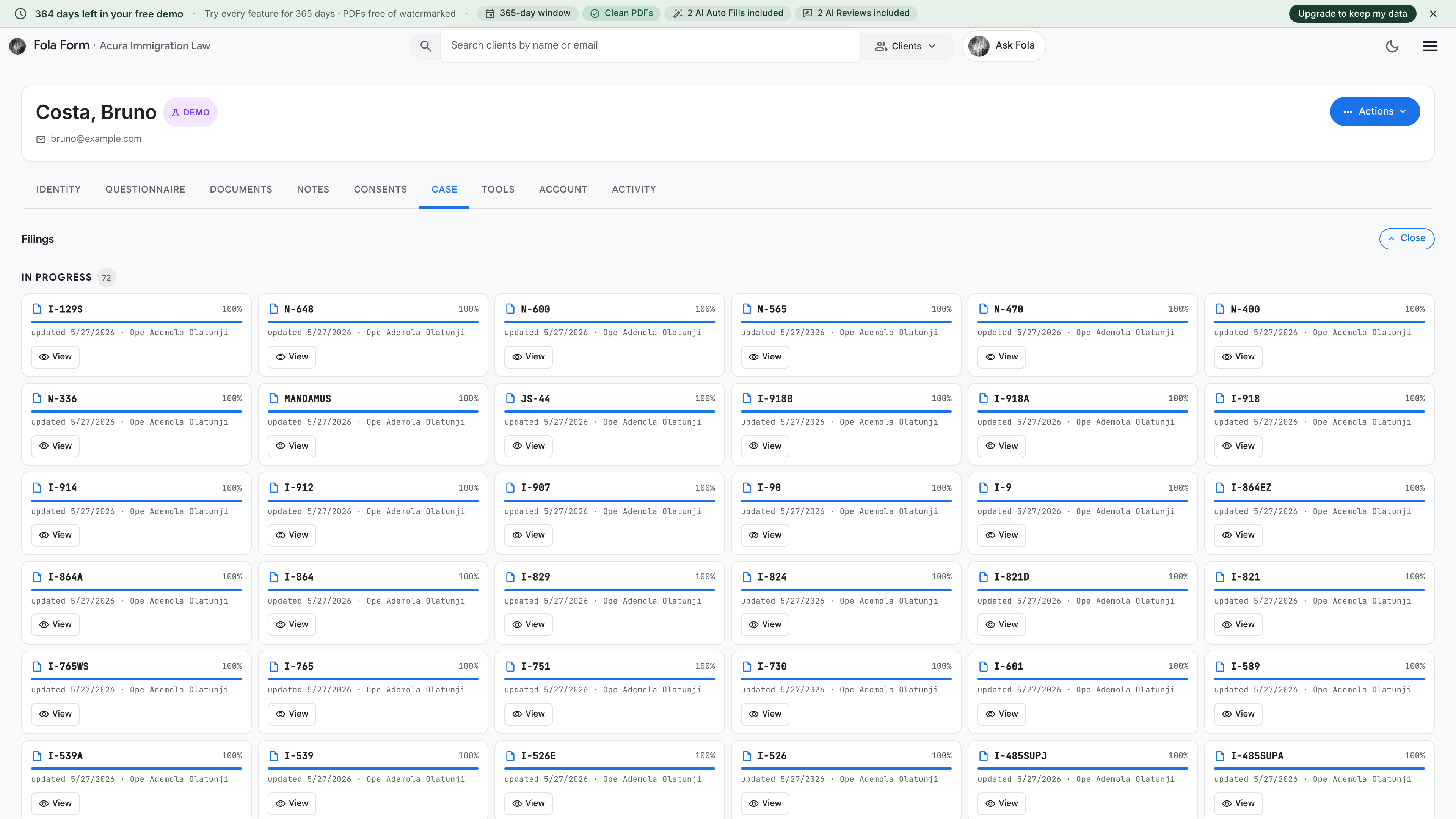
A case in Fola is a way to group everything you’re doing for one client around one goal — “marriage-based green card”, “naturalization application”, “EB-2 NIW”, “asylum-based AOS”. Cases are optional — many firms work form-by-form and skip case organization entirely — but on multi-form matters they keep the team aligned.
When to use a case
Section titled “When to use a case”Create a case when:
- You’re filing more than one form for this client on the same legal goal (I-130 + I-485 + I-765 + I-131 + I-864 — that’s one marriage-based AOS case)
- The matter has a deadline you care about tracking
- Multiple team members will work the same matter and need to see the same status
Skip cases when:
- You’re filing a single form once and you’re done (e.g. just an AR-11 change of address)
- The client comes to you for ad-hoc questions, not a structured matter
Creating a case
Section titled “Creating a case”Click New case on this tab. Pick a case type from the dropdown — Fola ships ~40 case types covering the common immigration matters. Each case type seeds:
- A default checklist of expected forms (e.g. selecting “Marriage-based AOS” pre-populates I-130, I-130A, I-485, I-864, I-765, I-131, I-693)
- Suggested evidence the client needs to produce
- Typical deadlines (e.g. biometrics within 90 days, EAD renewal 90 days before expiration)
You can edit any of these after creation. The defaults are starters, not handcuffs.
What’s on the case row
Section titled “What’s on the case row”Each case card shows at a glance:
- Case name + type
- Status — Open / In progress / Filed / RFE / Approved / Denied / Withdrawn / Closed
- Attorney of record — the licensed attorney signing for the matter
- Forms checklist — how many forms in the case are drafted vs filed vs receipted
- Next deadline — soonest upcoming date with a heads-up
- Last activity — what changed most recently
Click into a case to see the full case detail surface (a longer view that lists every form, every document, every event tied to the matter).
Closing a case
Section titled “Closing a case”Once USCIS approves (or denies, or you withdraw) — click Mark closed. You’ll be asked for the outcome and an optional outcome note. Closing:
- Moves the case to the Closed cases section (collapsed by default)
- Stops generating reminder notifications for missed deadlines
- Preserves everything — you can reopen any time for an RFE response or appeal
Was this page helpful?
Thanks — noted.