

Documents tab
The Documents tab is the central file store for everything tied to this one client. Passports, IDs, evidence packets, completed forms, signed consents — all of it lives here, encrypted at rest, scoped to your firm.
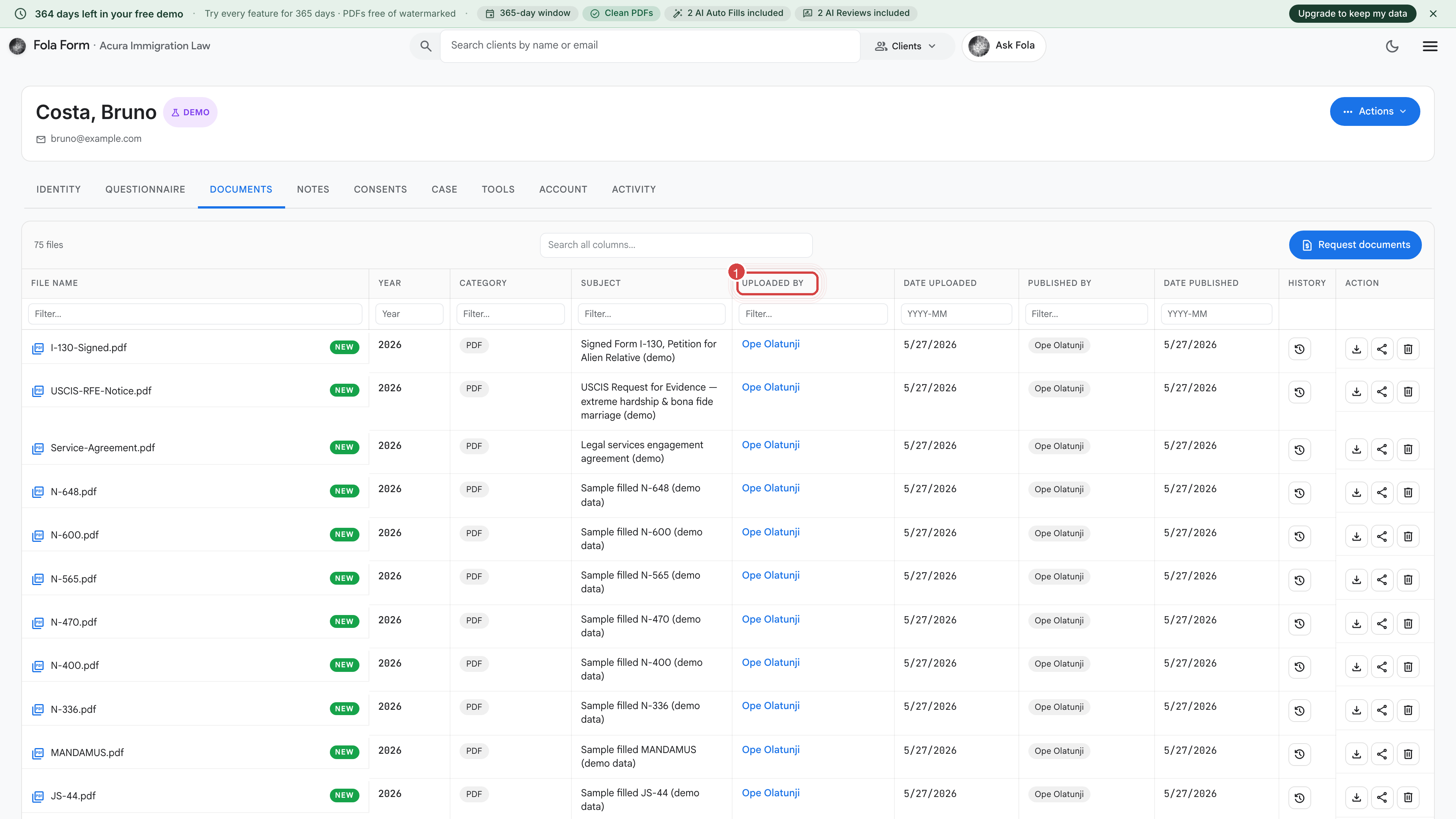
Uploading
Section titled “Uploading”Three ways to add a document:
- Drag and drop anywhere on the tab.
- Click Upload and pick the file from your computer.
- Send an intake link — anything your client uploads through the intake form lands here automatically under the “Intake responses” filter.
Accepted formats: PDF, PNG, JPG, HEIC, DOC, DOCX, ODT. Maximum size per file: 25 MB.
Browsing what’s here
Section titled “Browsing what’s here”Use the filter chips at the top to narrow the list:
- All — everything (default)
- Evidence — uploaded supporting documents (passport scans, marriage certificates, etc.)
- Forms — completed PDFs Fola has rendered for this client
- Consents — signed engagement letters, retainers
- Intake responses — documents the client submitted through their intake link
- Other — anything that doesn’t fit the above
The search box matches the document’s filename. Rename the file (row action below) if you want to find it later by anything other than what it was uploaded as.
Row actions
Section titled “Row actions”Each document row carries:
- Preview — opens an inline viewer (works for PDFs and images; Office docs download to your computer).
- Download — pulls the original file. Watermarked Fola outputs become unwatermarked when finalized, but the download pulls whatever is on disk.
- Rename — change the displayed filename. The original is preserved.
- Move to type — recategorize (e.g. you uploaded a passport under “Other” by mistake — move it to “Evidence”).
- Delete — soft-deletes for 30 days, then permanent. Recoverable during the grace window from Settings → Recently deleted.
What Fola adds automatically
Section titled “What Fola adds automatically”A few documents land on this tab without you doing anything:
- Every completed form — when you finalize a draft (clean PDF, no watermark), Fola drops the file here under “Forms”.
- Every signed consent — engagement letter, retainer, translator certificate — saves here under “Consents” the moment the client signs.
- Receipt notices — if you upload a USCIS receipt notice or scan one in, Fola extracts the receipt number and links it back to the relevant filing on the Filings surface.
Privacy & security
Section titled “Privacy & security”Everything you upload is encrypted at rest. Only members of your firm who have access to this client can see the documents. We never share client documents with anyone outside your org without your explicit say-so.
If a member leaves your firm, revoke their access from Settings → Members and they immediately lose visibility on every client (including this one’s documents).
Was this page helpful?
Thanks — noted.