

How do I invite a team member?
Adding a paralegal, junior attorney, or operations teammate to your firm workspace takes 30 seconds. The flow lives under Settings → My Org Members.
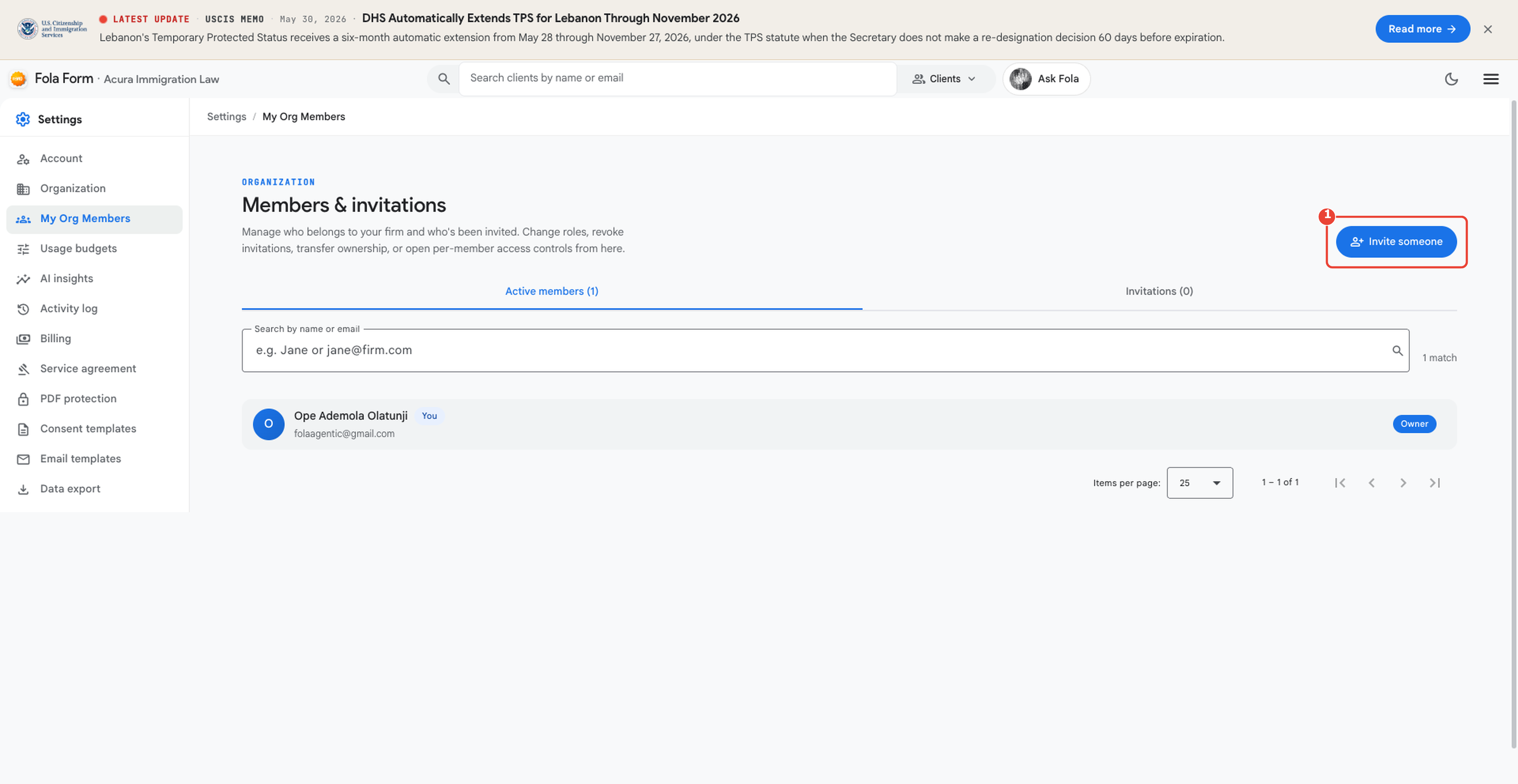
Open Settings → My Org Members
Section titled “Open Settings → My Org Members”From the workspace, click Settings in the top nav, then My Org Members in the left sidebar. The Invite someone button sits in the top-right of the page.
What you’ll need
Section titled “What you’ll need”The invite dialog asks for three things:
- Email address — the magic-link goes here. They don’t need a Fola account first; the link creates one when they accept.
- Role — choose from
- Owner — full control, including billing and ownership transfer
- Admin — manage members, clients, forms, but not billing
- Attorney — full case + form access
- Paralegal — case + form access, no per-member permission edits
- Read-only — view-only on every client and form
- Optional message — appears in the invite email above the Accept button. Useful for “Hi Sarah — your account is set up, here’s the access link.”
What happens after you send
Section titled “What happens after you send”The invitee gets an email with a 7-day magic link. When they click it, they pick a password (or sign in with Google), accept the invite, and land in your workspace with the role you picked.
The seat is billed only once they accept — pending invitations don’t count toward your seat total.
Removing or changing access
Section titled “Removing or changing access”Members already on the team show under Active members. Click any row to:
- Change their role
- Revoke their access (their JWT is invalidated immediately)
- Transfer ownership to them (Owner-only)
The action stays in scope: an Admin can change another Admin’s role but can’t downgrade the Owner.
Where to go next
Section titled “Where to go next”- Day 2 — Building your team — long-form walkthrough including bulk-invite via CSV.
- Roles & access — the full role catalog and how grants and scopes work.
- Troubleshooting — Members & access — what to do when an invite link 404s or a member can’t sign in.
Was this page helpful?
Thanks — noted.