

Day 2 — Building your team
Today’s goal: get every person in your firm into the workspace with the right level of access. Plan on ~10 minutes total — most of it typing email addresses.
The members page
Section titled “The members page”From the workspace, open Settings → Members.
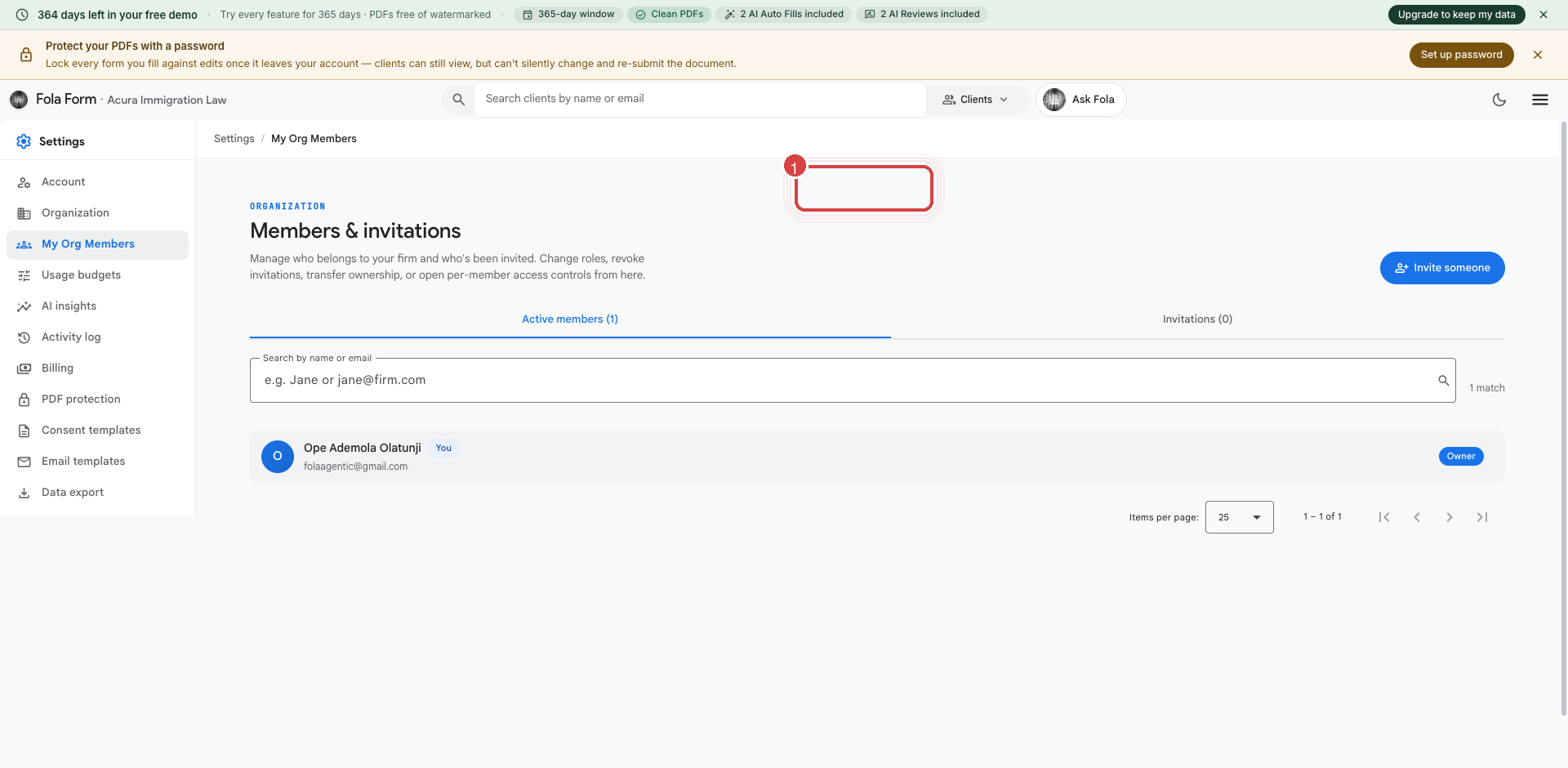
You’ll see the current roster (right now, just you) and a button to invite new members. Click Invite member. You’ll be asked for:
- Email address — the invitee gets a one-time signup link there.
- Role — see the role guide below.
- Optional welcome note — appears in the invitation email.
The five roles
Section titled “The five roles”| Role | Can do | Typical use |
|---|---|---|
| ORG_OWNER | Everything, including billing + transferring ownership | You (the founder/managing partner). Only one per org. |
| ORG_ADMIN | Everything except billing + ownership transfer | Office managers, operations leads. |
| ATTORNEY | Manage cases, sign filings, see firm-wide client list | Every licensed attorney at the firm. |
| PARALEGAL | Prepare cases, draft filings, edit profiles | Paralegals, legal assistants. |
| VIEWER | Read-only across the firm | Auditors, accountants reviewing billables. |
Bulk-inviting the whole firm
Section titled “Bulk-inviting the whole firm”If you have more than ~5 people, skip the one-at-a-time flow and use Bulk ops instead:
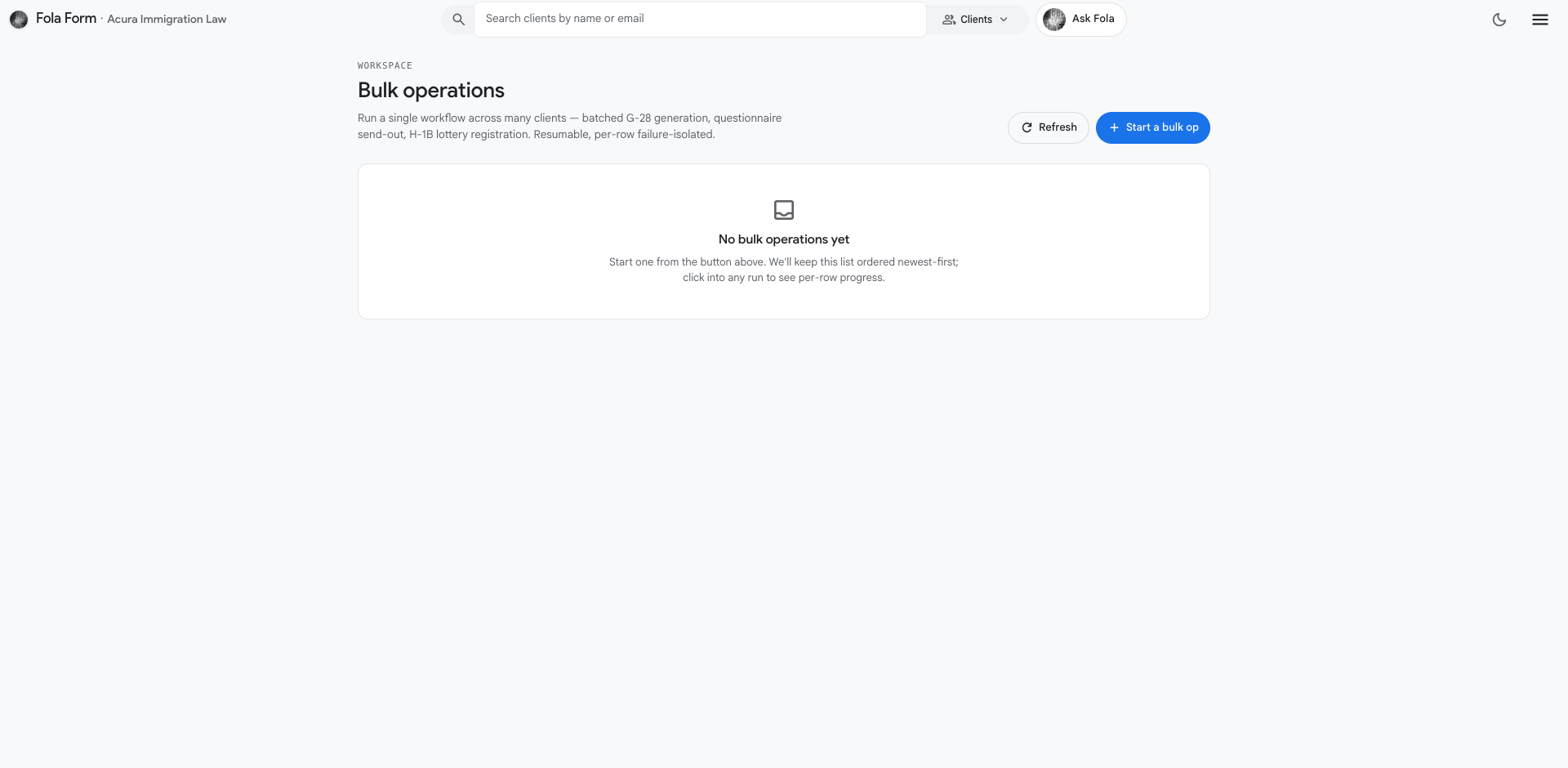
Upload a CSV with email, role, and optionally givenName and
familyName columns. Fola dispatches the invitations in a single
batch and shows you a result table — who got their invite, who
bounced, who was already in the system.
After someone accepts
Section titled “After someone accepts”Once an invitee clicks their invite link and creates a password, they land on their own personal Day 1 surface (the same one from yesterday’s article). Two things happen automatically:
- They’re added to your org under the role you picked.
- They consume one seat against your firm’s subscription. Demo orgs get 5 seats; paid tiers grow from there.
You can see the active seat count any time at Settings → Billing. We’ll talk about how that interacts with AI usage on Day 7.
Fine-grained access
Section titled “Fine-grained access”For most firms, the five built-in roles are enough. If you need to narrow what a specific person can see — e.g. a contractor paralegal who should only see one practice area — open Settings → Members → [their row] for per-member access controls.
The granularity is intentionally limited (Fola is not a full RBAC platform); it covers the common “this attorney handles family-based only, this one handles employment only” splits.
Under the hood, each role is its own grant on the person’s account, scoped to your firm — one person can hold more than one, and each grant is added and revoked separately. For the full picture (grants, scopes, and every role that exists), see Roles & access.
What’s next
Section titled “What’s next”Your team is in. Tomorrow we’ll add your first client and walk through the profile shape.
Was this page helpful?
Thanks — noted.