

Day 7 — AI quotas at the org level
The last day in the series. Today we turn the abstract “how much AI can the firm use this month” into specific budgets per person — and set the policy that decides what happens when one attorney has a big filing week.
How quotas actually work
Section titled “How quotas actually work”Every tier has three numbers per seat:
- AI Chat cap — interactive Ask Fola conversations per month
- AI Autofill cap — one-shot form fills per month
- Attorney Level Intelligence Review cap — pre-filing reviews per month
Demo orgs get 5 / 2 / 2 per seat × 5 seats = 25 / 10 / 10 firm-wide per month. Firm Starter ($59/seat) gets 10 / 25 / 5; Firm Pro ($99/ seat) gets 25 / 30 / 7. Numbers per tier live on the billing reference.
These numbers are the pool. By default the whole firm shares them — first-come-first-served, no per-person limit. That’s the right default for most small firms.
When pooled isn’t enough
Section titled “When pooled isn’t enough”Once you have ~5+ attorneys with very different workloads, the pool gets uneven: one heavy-user attorney can consume the whole month’s budget in their first week, leaving everyone else dry. The fix is per-member budgets.
Open Settings → Usage budgets:
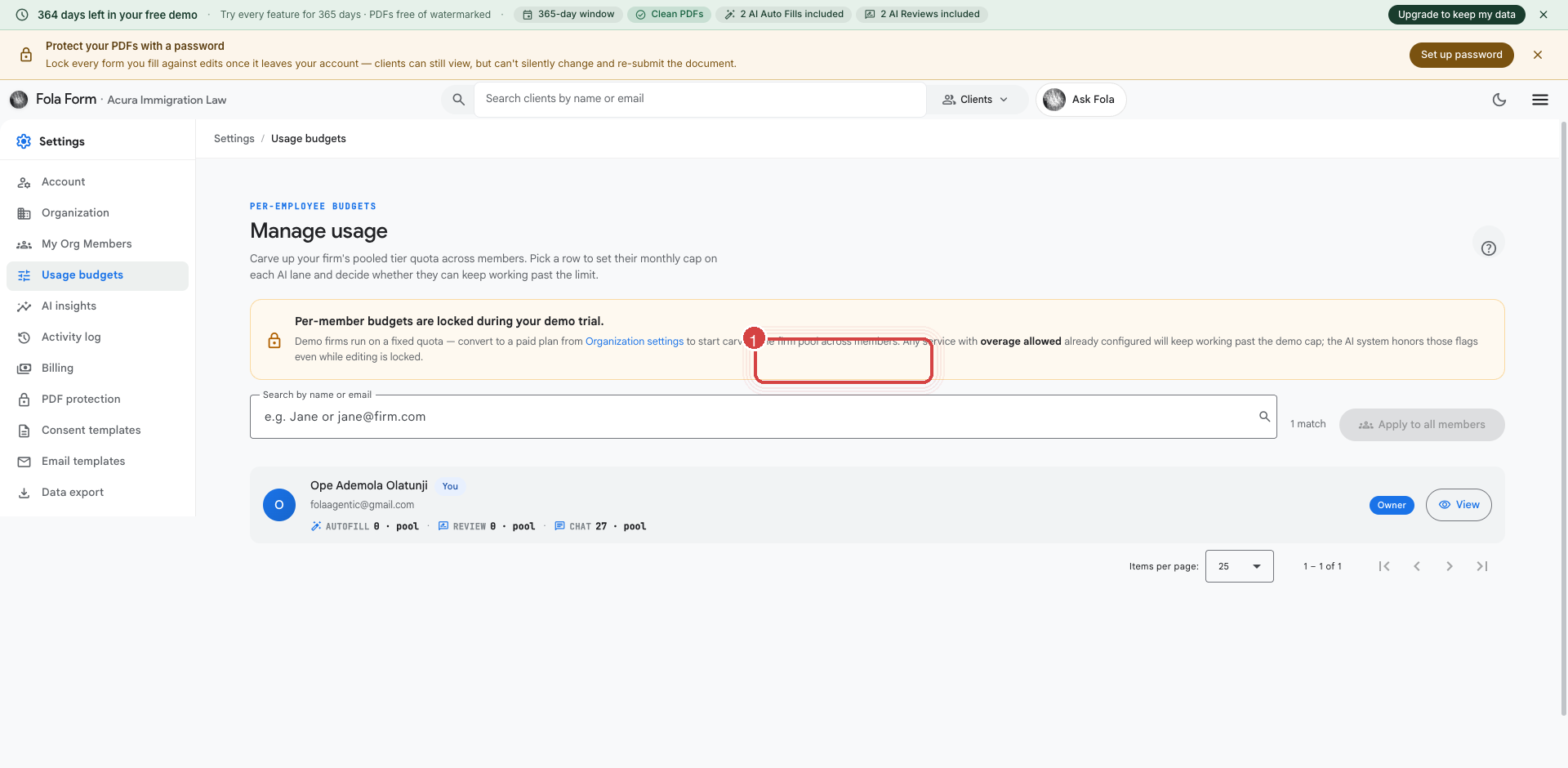
For each member, set a number for each AI feature. The default is “unlimited within the pool”; set a specific number and that member is capped at that number per month, regardless of how much pool is available.
Common patterns:
- Founder gets unlimited (pool default), everyone else gets a fair share. Good for small firms where the founder is the heaviest user and predictable.
- Equal split across everyone. Good for firms that want everyone to feel they have a known budget.
- Practice-area-specific shares. Immigration heavy on autofill, tax light. Set autofill higher for the immigration team.
Overage allowance
Section titled “Overage allowance”If a member hits their per-member cap and the firm is on a paid tier, the next AI run gets pay-as-you-go billed at the tier’s overage rate ($0.30–$0.65 per chat, $4 per autofill, $8–$10 per review). Demo orgs are hard-capped — no overage charges, no surprises.
Org admins control whether overage is allowed firm-wide. Open the same Usage budgets page and toggle Allow overage per member. Default: off. Turn it on for the members you trust to spend.
Mid-cycle reallocation
Section titled “Mid-cycle reallocation”If a member needs more right now (RFE deadline, big filing week), an admin can bump their budget mid-cycle:
- Open Settings → Usage budgets → [their row].
- Adjust the cap upward (or set “unlimited within pool”).
- Save.
The change takes effect immediately. Their next AI run uses the new cap. The change is also logged in Settings → Activity so you can audit who increased whose budget when.
Watching usage
Section titled “Watching usage”Two surfaces to keep an eye on:
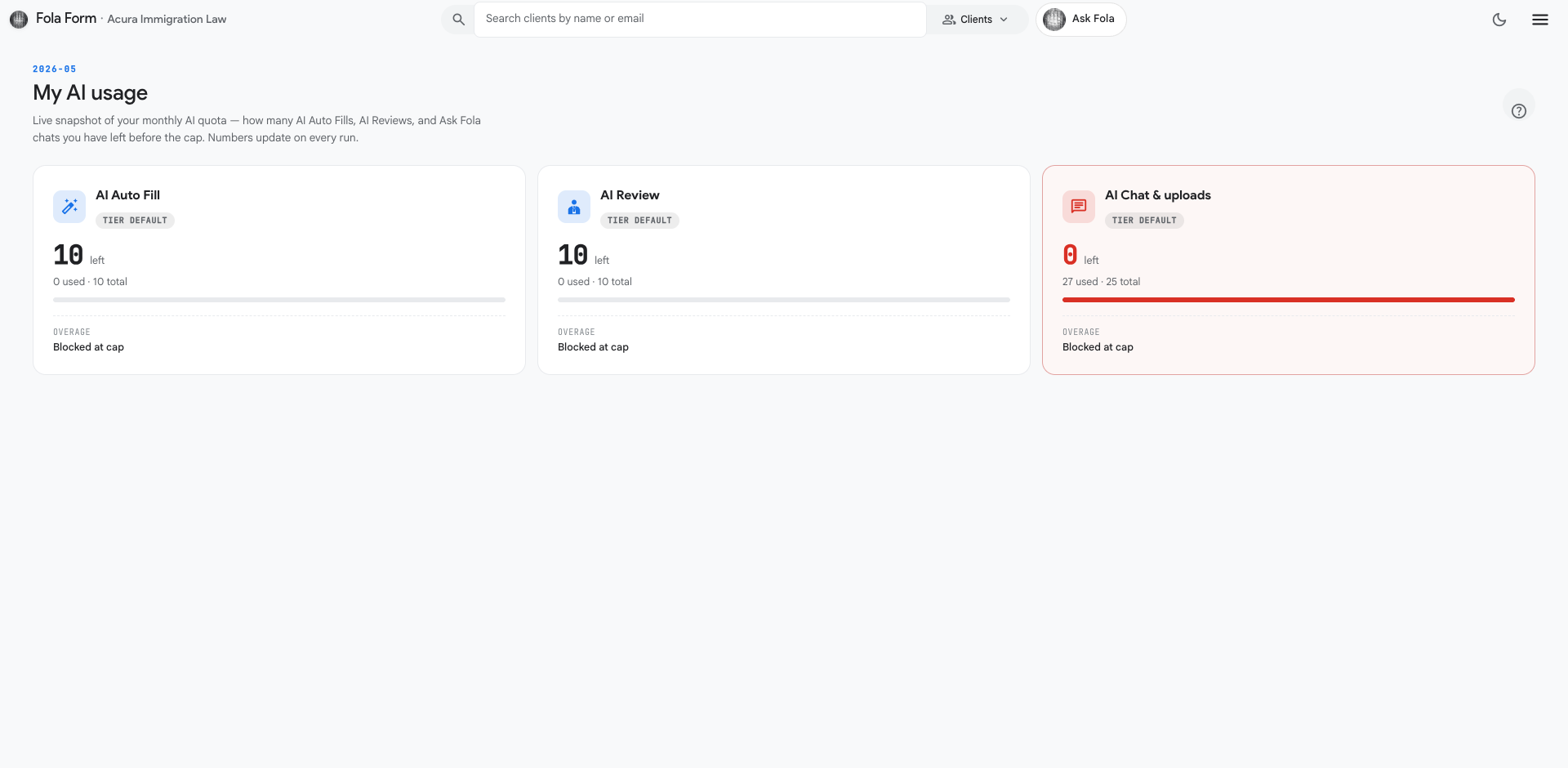
Per-member usage — every member can see their own:
Firm-wide insights — admins see a roll-up:
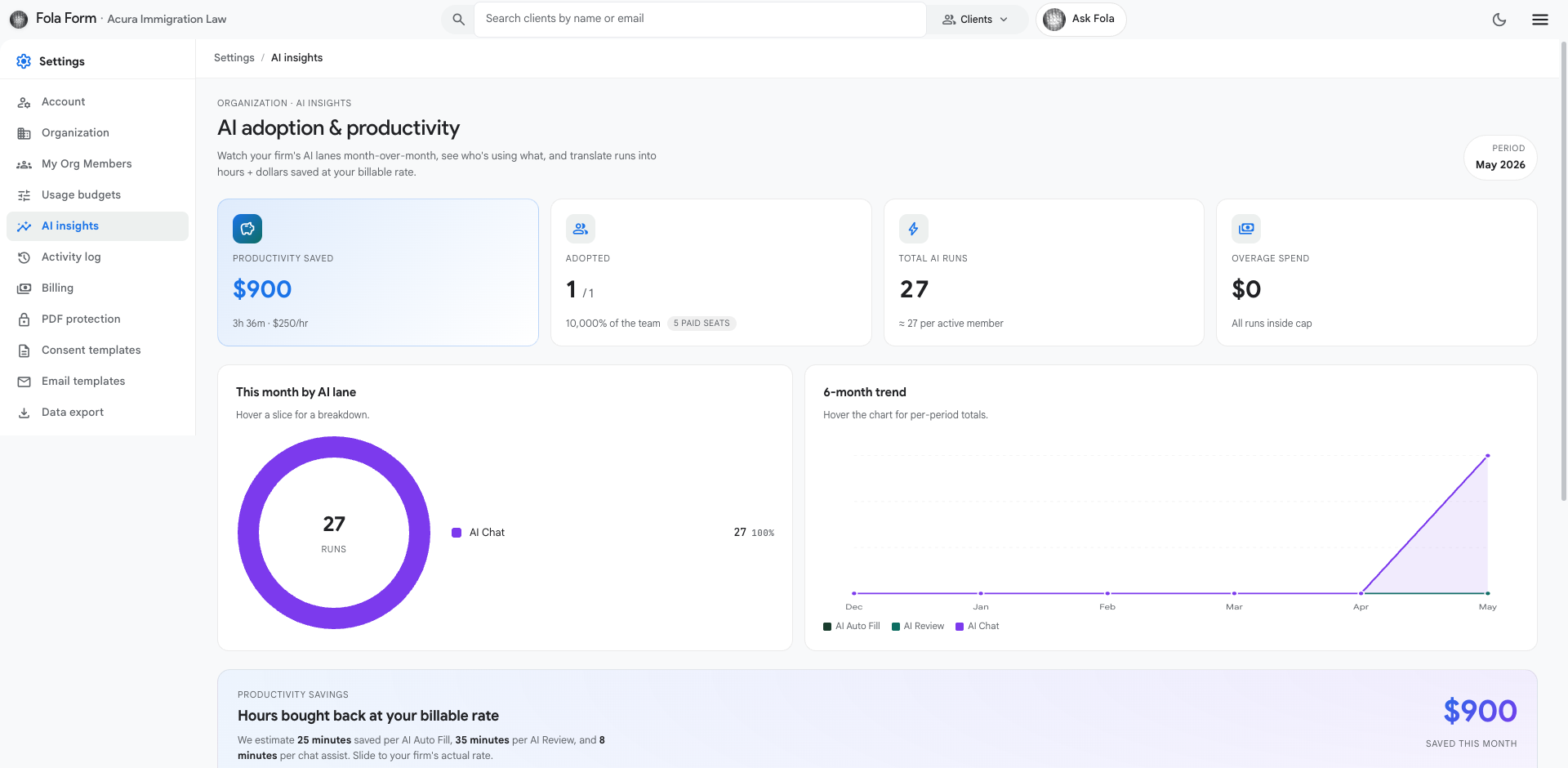
The insights page surfaces who’s using the most, which features are hot, and how close the firm is to the monthly pool ceiling. Open this once a week early on; once your team settles into a rhythm you can check it monthly.
Billing — what shows up on the invoice
Section titled “Billing — what shows up on the invoice”Open Settings → Billing:
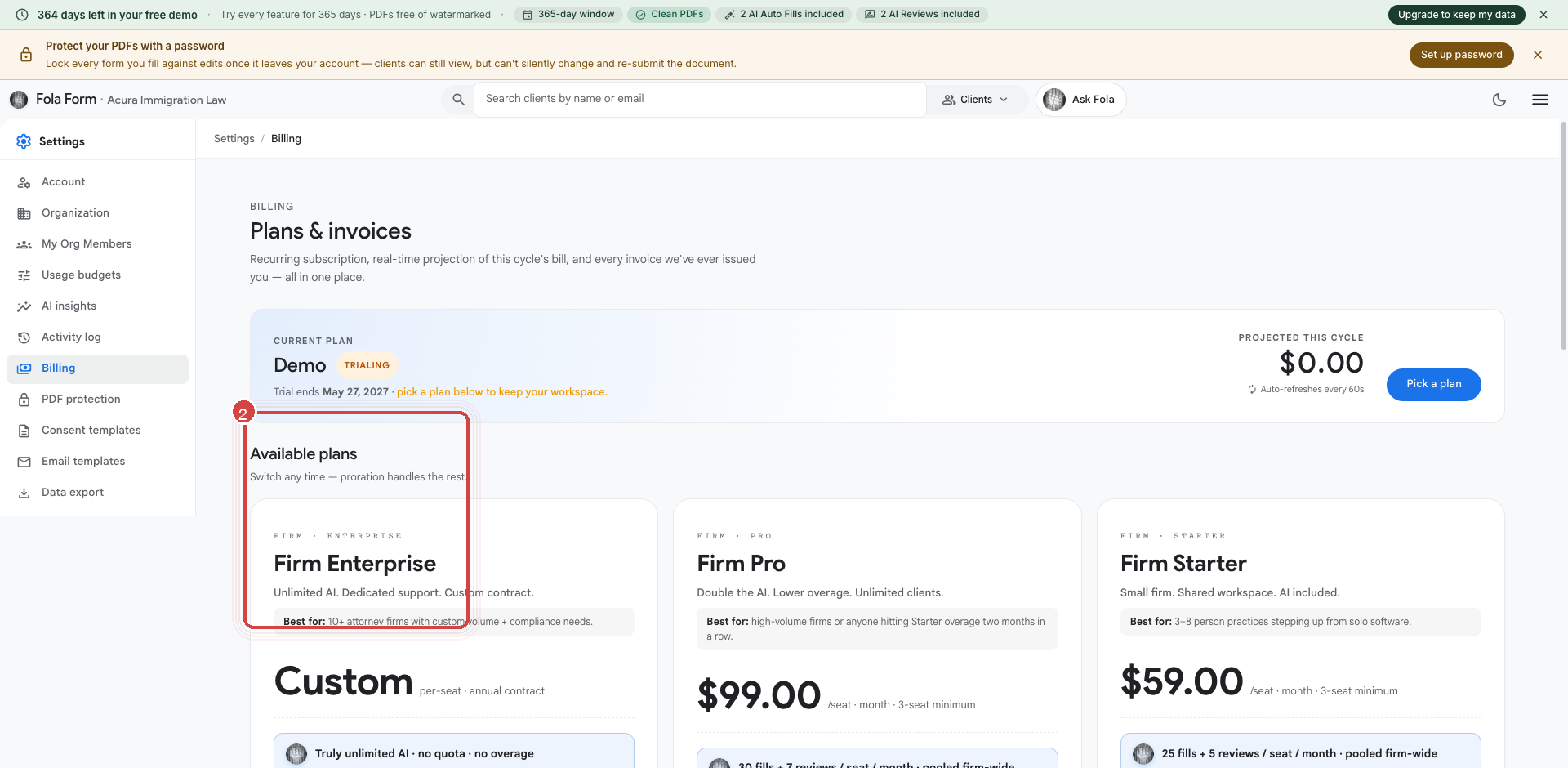
Three categories on every monthly invoice:
- Base subscription — per-seat × active seats × tier price
- AI overage — pooled or per-member overage from the cycle just closed
- Add-ons — Concierge Mail Order, Mandamus generation, etc. purchased that month
The first charge on a new paid subscription runs on the 1st of the calendar month following sign-up, prorated. Auto-charges against your saved card. We cover the full billing model in the billing reference.
End of the series
Section titled “End of the series”That’s the firm-admin onboarding tour. From here:
- Bring on real clients. The setup work is done; everything from here is just running cases.
- Browse the product reference for any feature we haven’t covered.
- Read the billing reference before you upgrade off the demo plan.
- Set up the API + SDK if you want programmatic access for back-office tooling.
If anything in the series is unclear or out of date, the docs are open-source on GitHub — there’s an “edit this page” link at the bottom of every article. Or hit reply on any Fola email; the founder reads the inbox.
Was this page helpful?
Thanks — noted.