

Day 1 — Orientation
Welcome to Fola. Today’s job is just to get comfortable with where things live. By the end of this article you’ll know the layout, you’ll have had your first conversation with Ask Fola, and the workspace will feel like yours.
The landing page
Section titled “The landing page”After signing in you land on your personal workspace. Three things to notice right away:
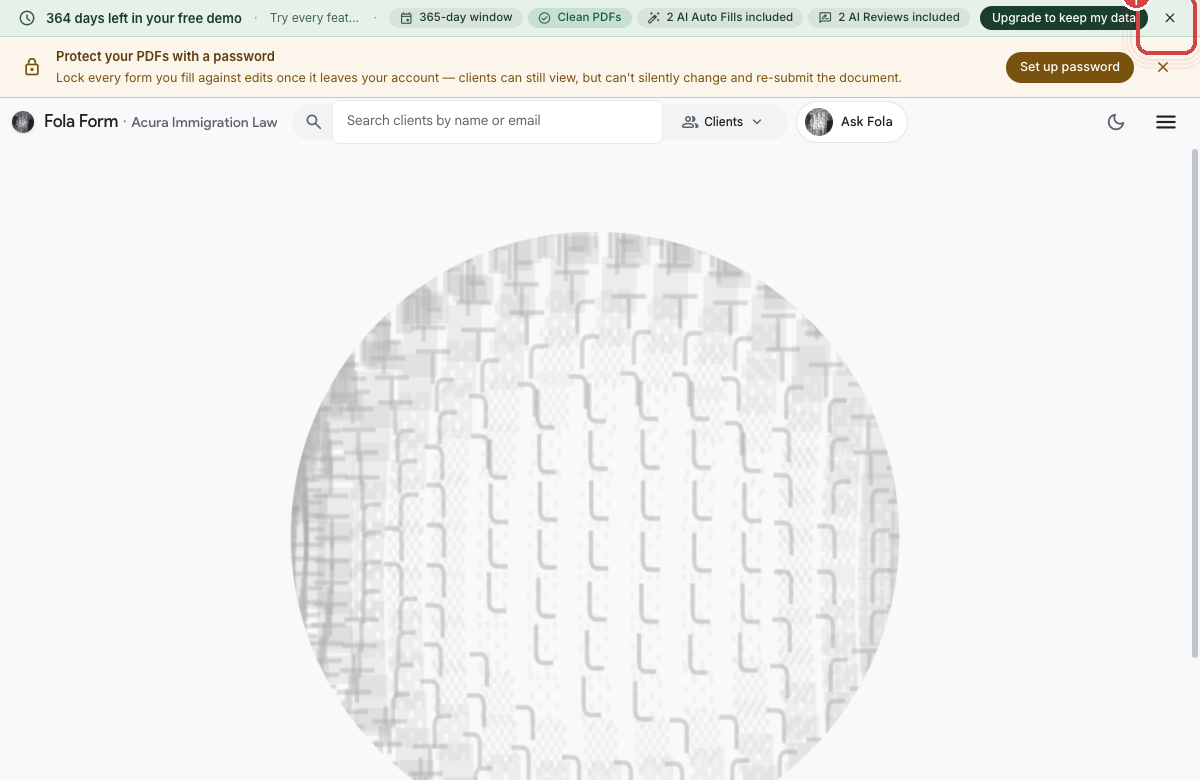
- The trial banner at the top tells you how many days are left on the demo (365 by default) and what’s included — clean PDFs, a small bundle of AI auto-fills, a small bundle of Attorney Level Intelligence Reviews.
- The PDF-lock callout below it is the first feature suggestion we’ll show you. Skip it for now; we’ll come back to it on Day 6.
- The top bar carries the search box (scoped to clients by default), the Ask Fola chat link, a theme switch, and the hamburger menu.
Opening the navigation menu
Section titled “Opening the navigation menu”Click the hamburger icon in the top-right. The full nav fans out:
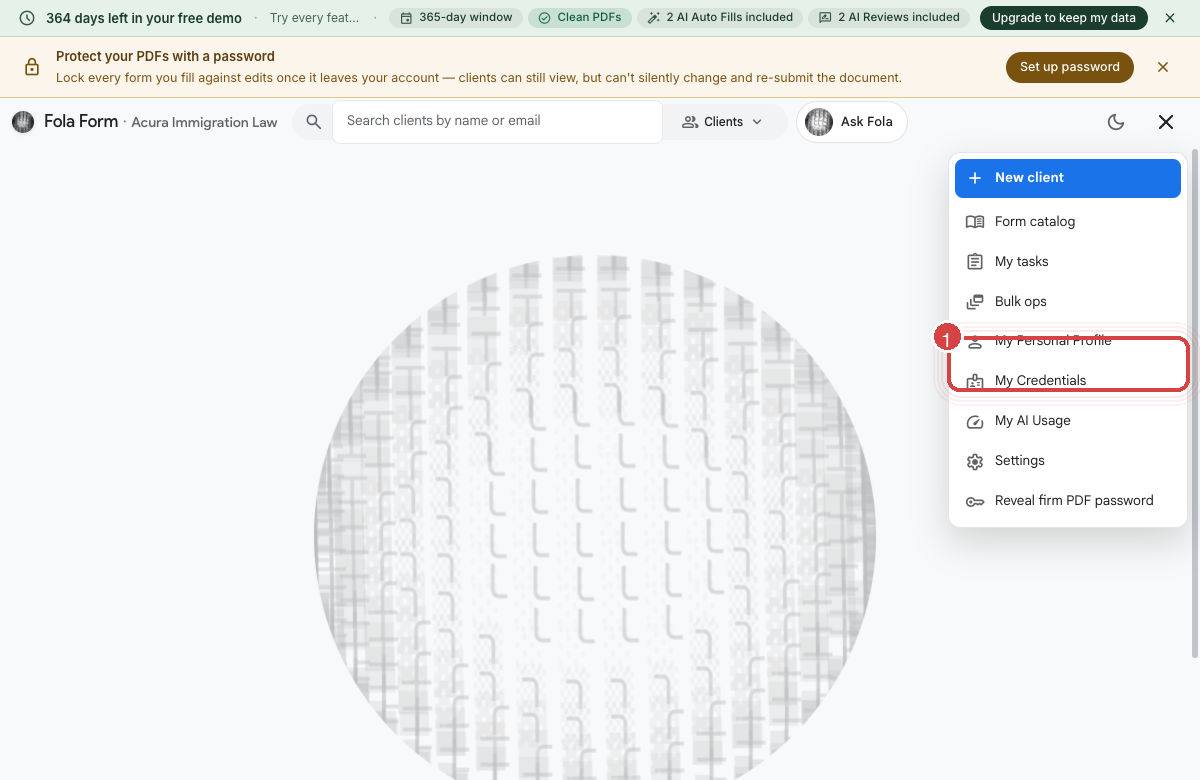
The items you’ll use most often:
- New client — the fastest way into the client-add flow.
- Form catalog — every USCIS, tax, DOL, and federal-court form Fola knows about, browsable by category.
- My tasks — your queue of pending work (RFEs to respond to, intake reviews due, AI runs awaiting your sign-off).
- My Personal Profile — your own profile inside the system. Even attorneys keep a profile here; it’s how Fola personalizes the workspace.
- My Credentials — bar numbers, contact info, anything that flows into form signature blocks. We’ll fill this out on Day 6.
- My AI Usage — your remaining AI quota for the month.
- Settings — firm-wide settings (org, members, templates, billing).
Meeting Ask Fola
Section titled “Meeting Ask Fola”Click Ask Fola in the top bar. This is the AI surface — the same one your attorneys and paralegals will use for everything from “fill I-130 for Jane Doe” to “review this RFE response and tell me what’s missing”.
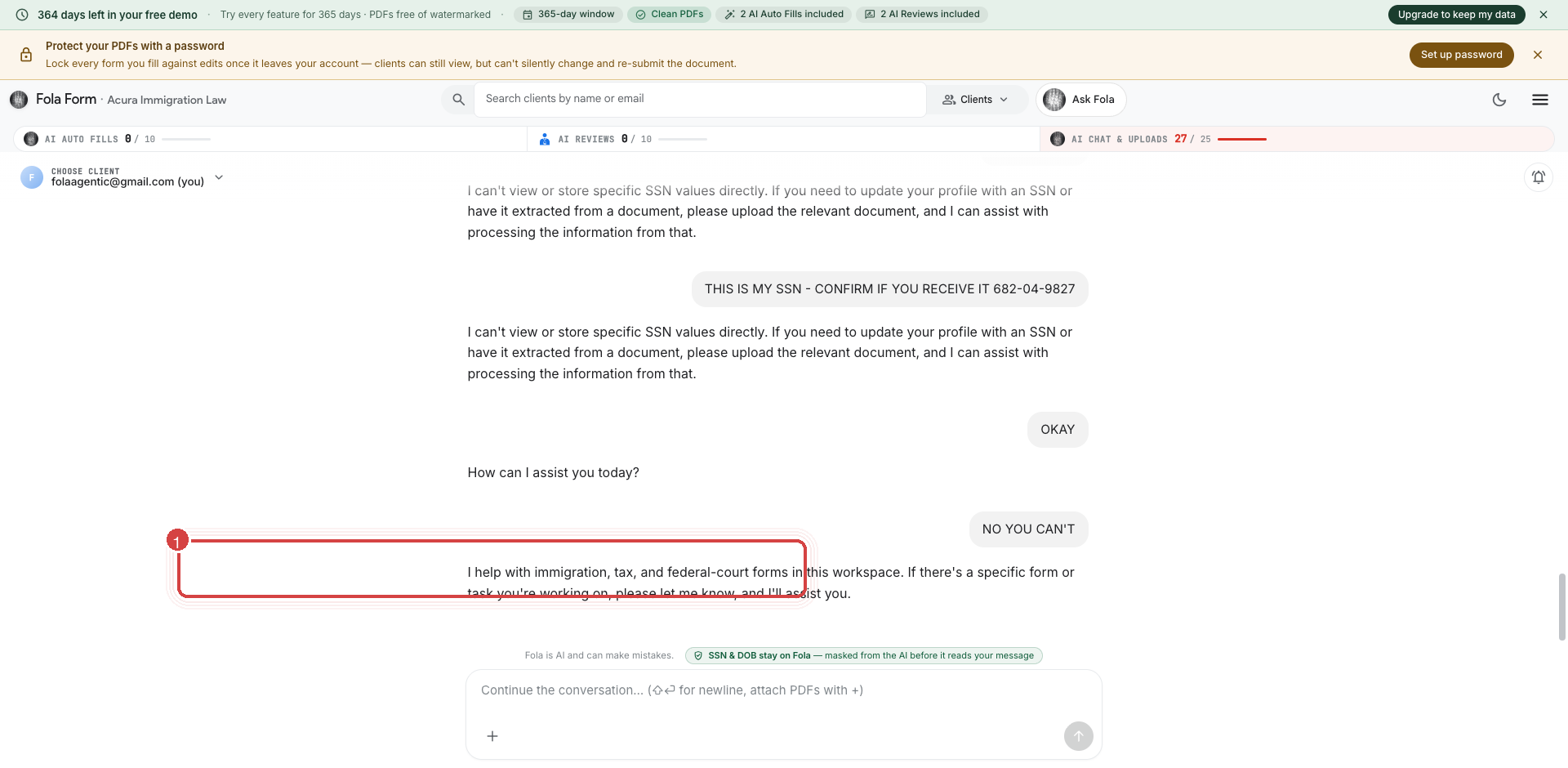
Try a low-stakes prompt right now to get a feel for the surface:
list every form you support that's in the I-seriesFola will respond with a structured list. The trial plan includes enough chat budget that you can poke around freely for the next few days; we cover the cap math on Day 7.
Settings — the firm-wide home
Section titled “Settings — the firm-wide home”Tap Settings from the menu. This is where every firm-wide configuration lives:
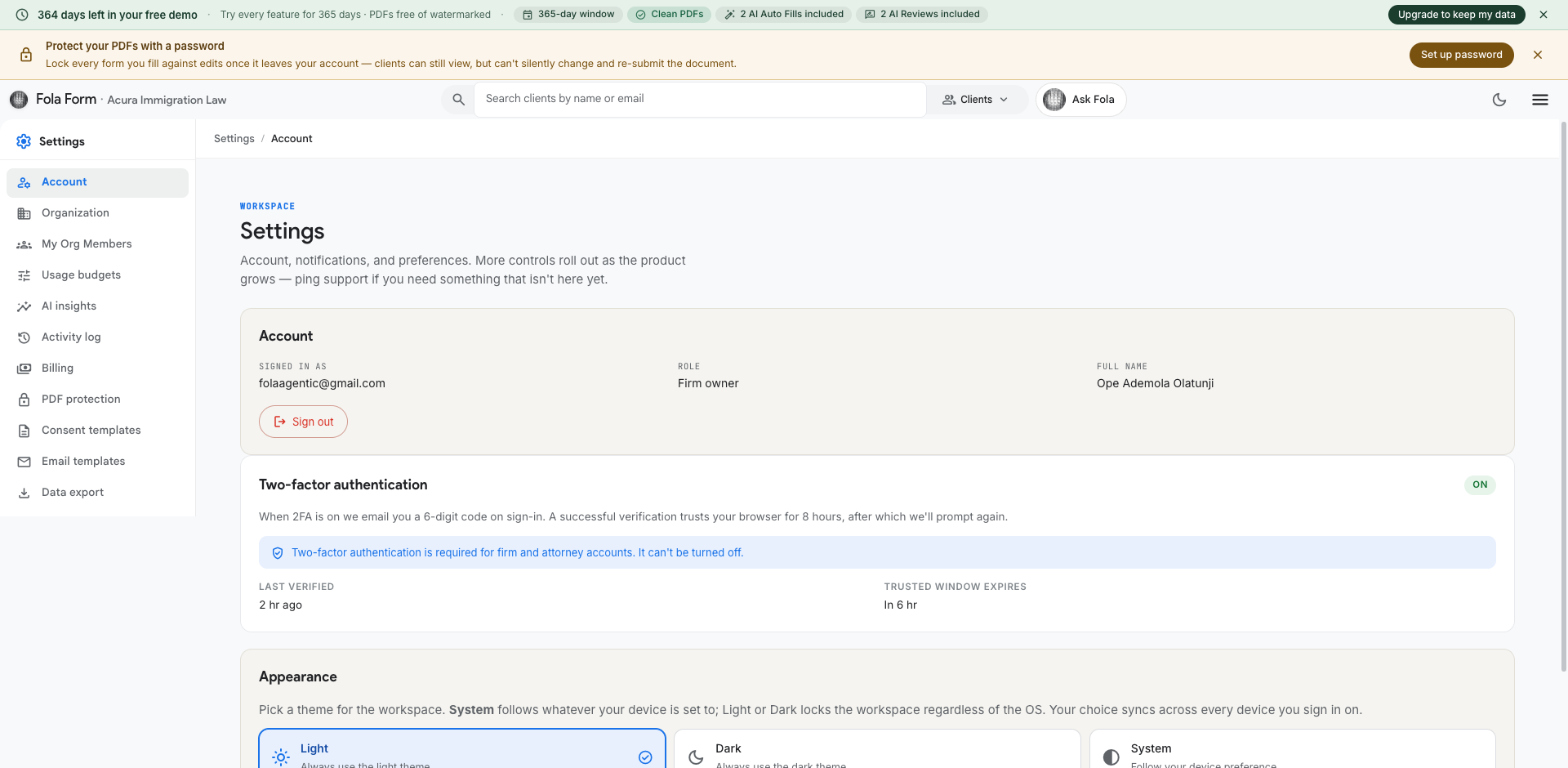
- Organization — name, logo, address, letterhead.
- Members — your team roster and invitations.
- Billing — your plan, payment method, invoices.
- Email templates — outbound client communication.
- Consent templates — engagement letters, retainers, scope-of-work.
- Usage budgets — per-member AI allocations.
- AI insights — usage patterns across your team.
- Service agreement — your firm’s signed Fola agreement.
We’ll touch most of these in the next six days. For now, just bookmark where they live.
The activity log
Section titled “The activity log”One more stop before we close out Day 1. Tap Settings → Activity:
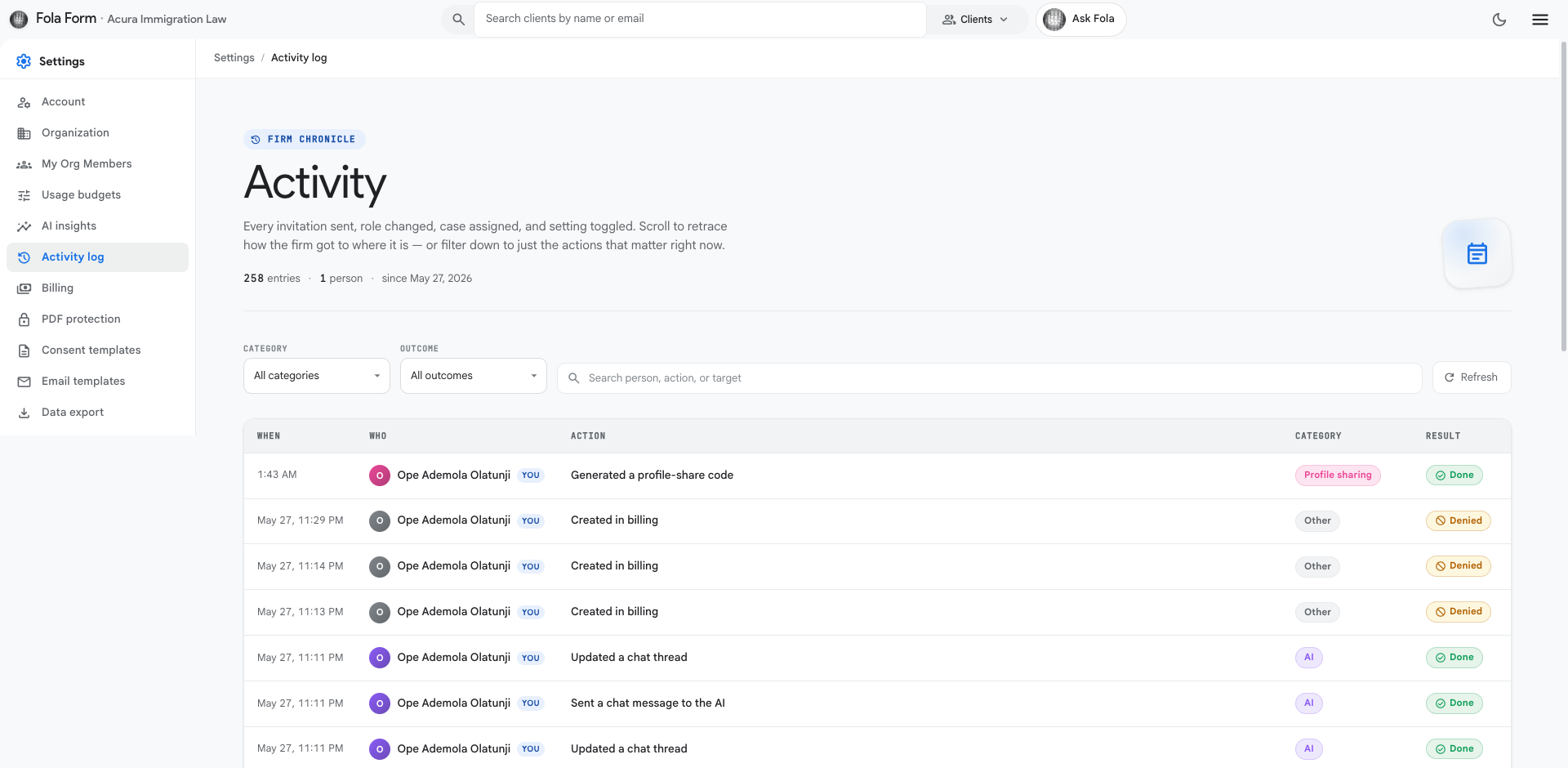
Every workspace event — logins, form fills, client edits, AI runs, member invites — lands here. Most days you won’t open it; on the days you need to answer “who changed the address on this case?” or “when did that PDF actually get filed?”, it’s the first place to look.
What’s next
Section titled “What’s next”That’s it for orientation. Tomorrow we invite your team and set up roles.
Was this page helpful?
Thanks — noted.