

Day 5 — Your firm brand
Yesterday’s PDFs all rolled out under Fola’s default branding. Today we fix that — by the end of this article, every email, cover letter, and consent form your firm sends carries your name, your colors, and your contact info.
Organization settings
Section titled “Organization settings”Open Settings → Organization:
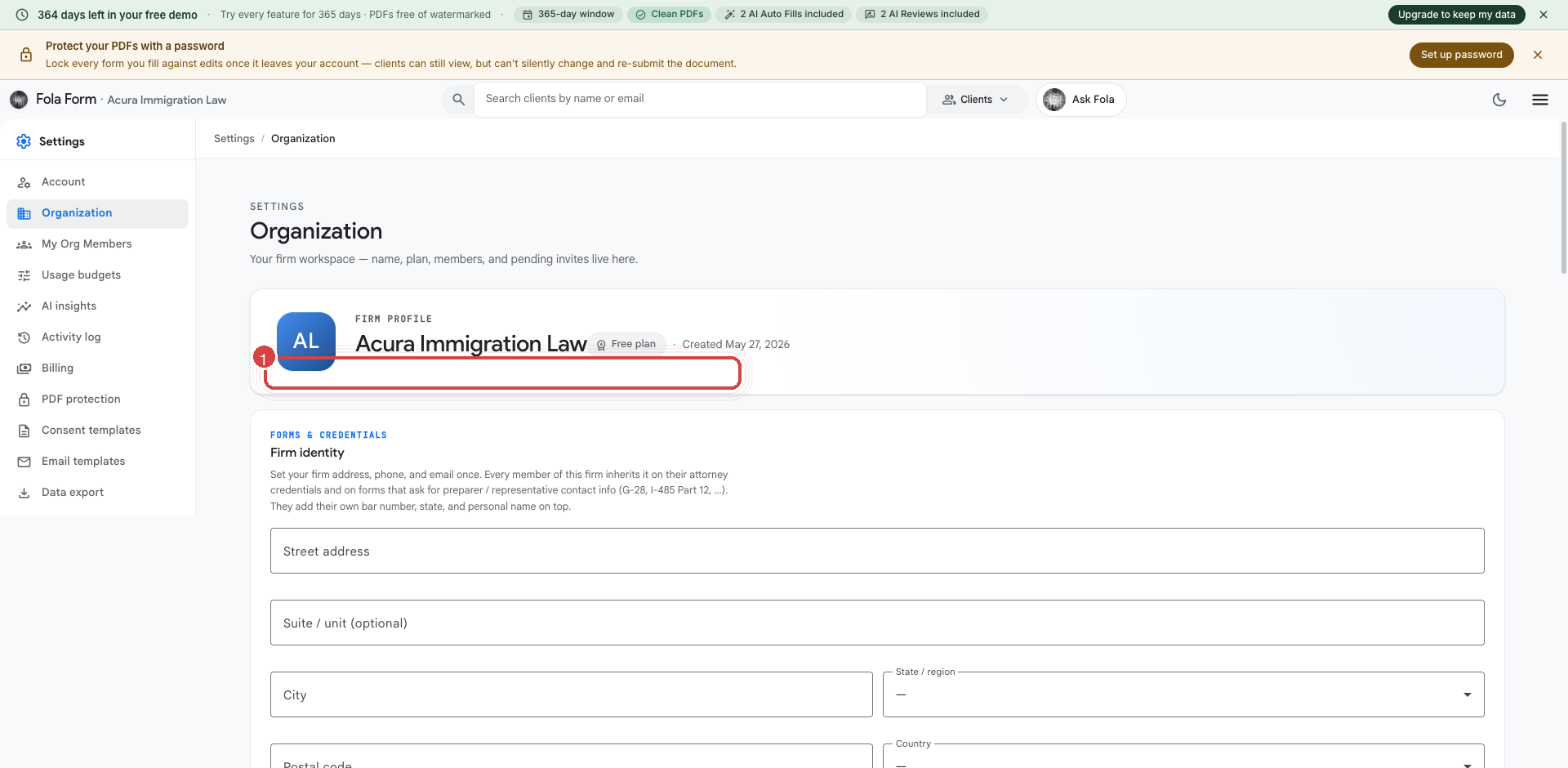
Fill in:
- Display name — what shows in the top bar, on emails to clients, and on cover letters
- Legal name — the formal entity name (e.g. “Acura Immigration Law, PLLC”); appears on filings and engagement letters
- Address — street, city, state, zip; lands on every letterhead
- Phone & website — surface on cover letters and email signatures
- Logo — PNG or SVG; recommended ≥ 256×256 for crispness; appears top-left on every PDF cover letter
Save. Refresh the workspace and confirm the top-bar pill updated.
Email templates
Section titled “Email templates”Open Settings → Email templates:
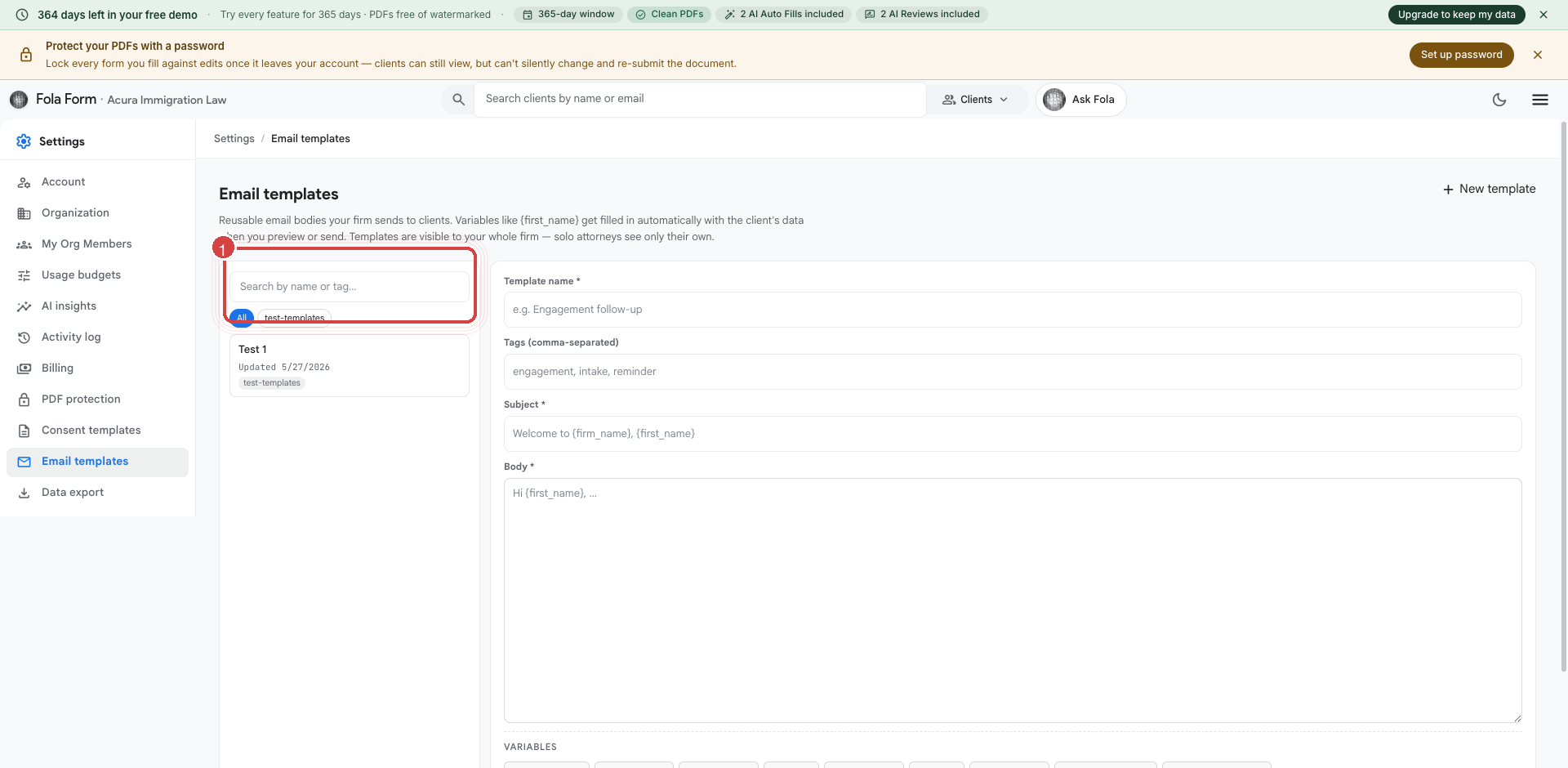
These are the outbound emails your firm sends to clients. Each is
template-driven with substitution variables like {{client_first_name}},
{{case_name}}, and {{appointment_date}}. The defaults are
plain-English starters; you can customize the body, the from-name, and
the reply-to per template.
Common templates worth customizing on Day 5:
- Intake request — the email a client receives when you generate an intake link
- Document request — when you’re asking for a passport scan, tax return, or other evidence
- Case status update — your standard “here’s where we are” check-in
- Filing confirmation — sent when you finalize a USCIS filing
You don’t have to customize all of them now. The defaults work; come back as you settle on your firm’s voice.
Service agreement (your copy)
Section titled “Service agreement (your copy)”Open Settings → Service agreement:
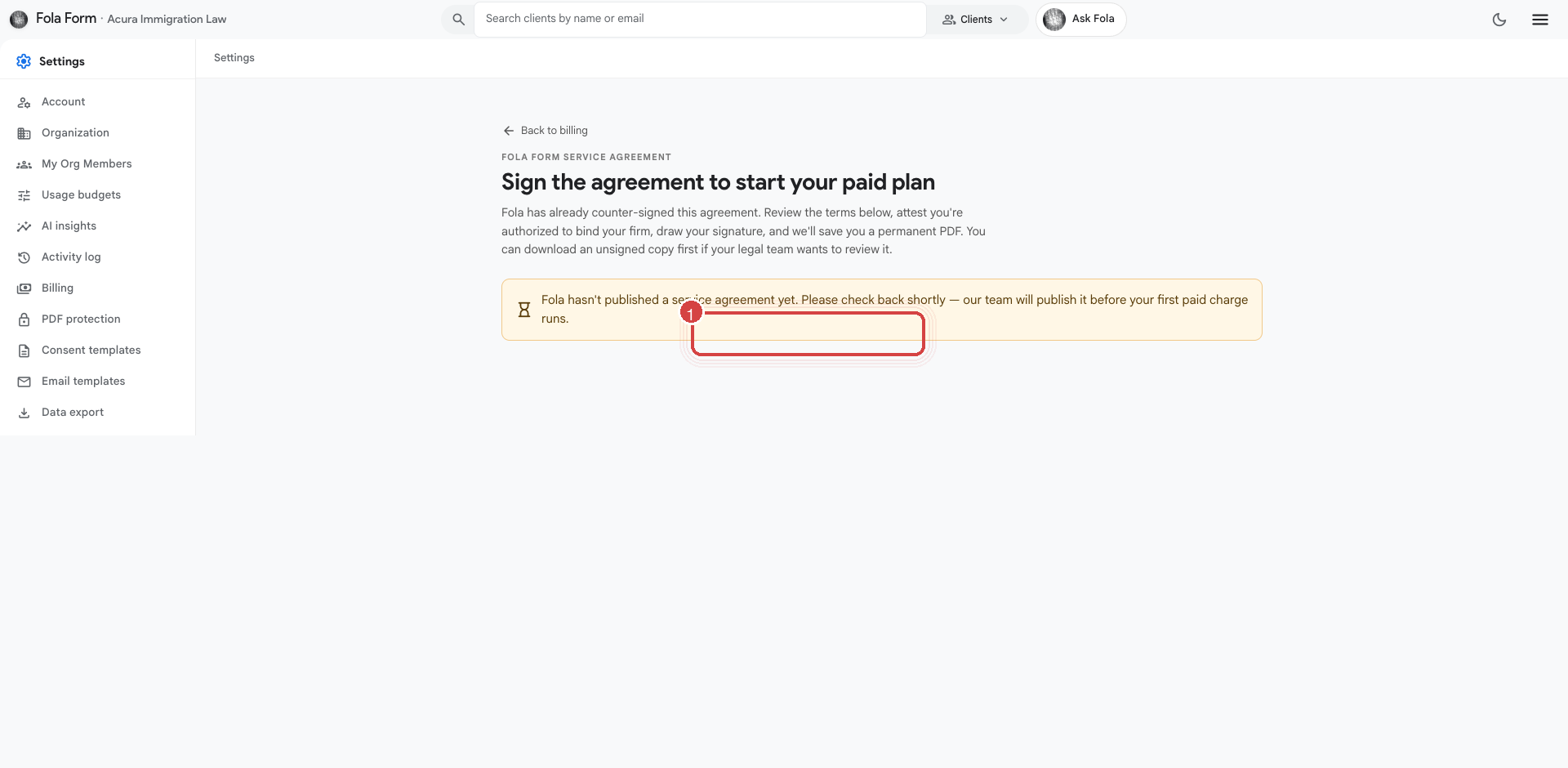
This is the Fola–firm service agreement — the contract between
your firm and Fola covering the platform itself. On the demo plan
you can browse it freely; the moment you start a paid subscription
Fola will require it to be signed first (via a drawn signature on a
canvas pad). That gates /subscribe from the billing page.
The agreement is pre-signed by Fola’s authorized representative. Your side captures the signer’s name, title, an authority-to-bind attestation, and a drawn signature. The dual-signed PDF is saved to your account permanently — downloadable any time from this page.
Consent templates
Section titled “Consent templates”Open Settings → Consent templates:
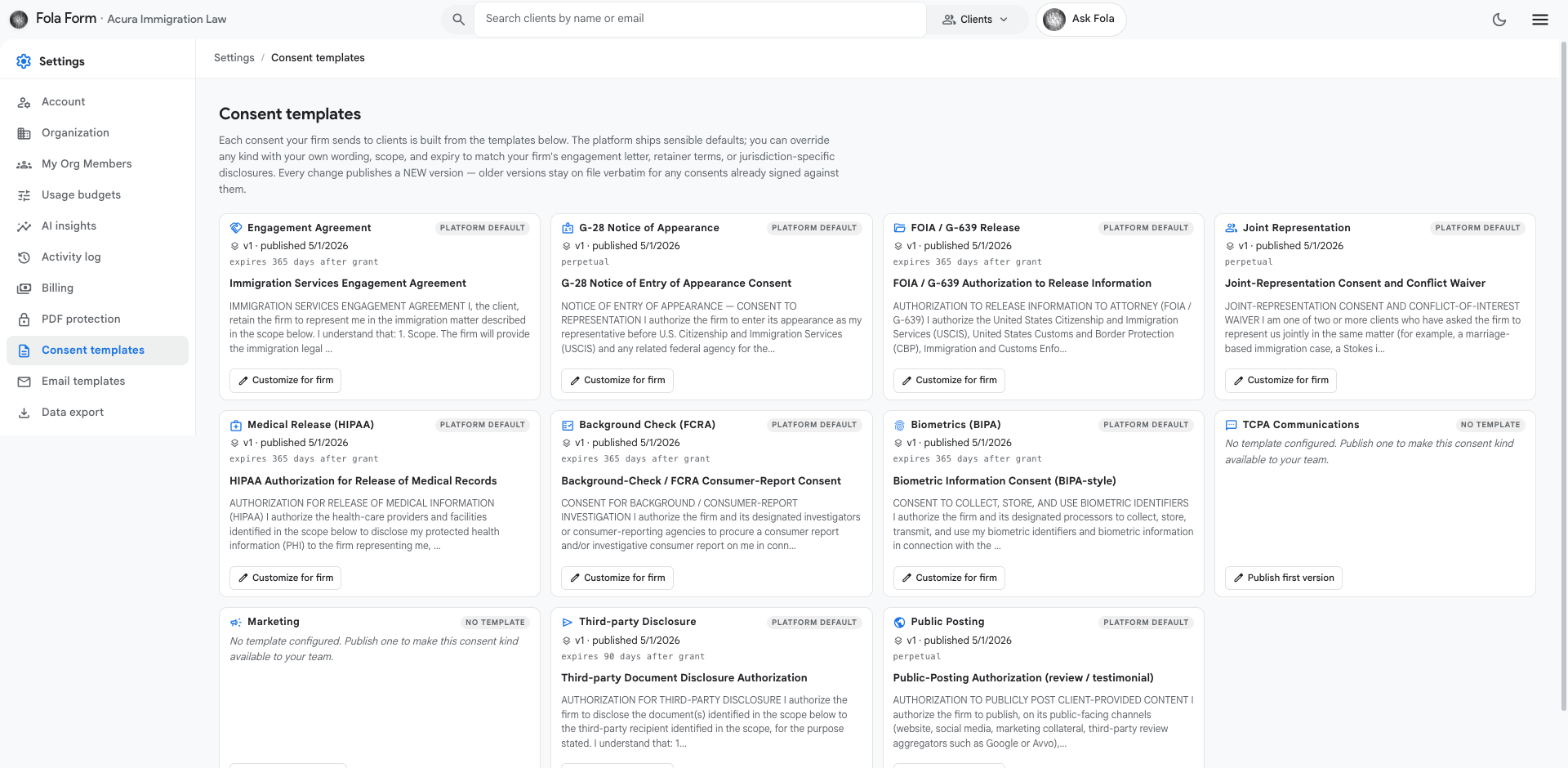
Consent templates are the firm–client agreements your clients sign — engagement letters, scope-of-work, retainer agreements, fee schedules. Fola ships a starter set covering the most common practice areas:
- General engagement letter
- Limited-scope representation
- Flat-fee fee agreement
- Hourly fee agreement
- Translator certificate
You can edit any of them, mark some active and others inactive, or add your own custom templates. When a client signs (drawn signature on a canvas pad, same as the service agreement above), the signed PDF lands in their Documents tab and is bound to that specific client.
A note on cover letterhead
Section titled “A note on cover letterhead”The cover letterhead for filings (the page Fola staples to the top of every USCIS submission) inherits automatically from your Organization settings — logo + legal name + address. There’s no separate “edit letterhead” surface; everything flows from the Org page above.
If you want a more elaborate letterhead (a tagline, partner names, a bar admission line), open Settings → Organization → Letterhead overlay and add the extra copy there.
What’s next
Section titled “What’s next”Brand done. Tomorrow we make sure each attorney’s credentials are captured so they flow into the right places on the right forms.
Was this page helpful?
Thanks — noted.